
How To: Add and Edit Attributes
Documentation: Attributes
NAVIGATION: from the catalog record, click on the Attributes Tab OR the “Edit” link in the corner of the Attributes detail
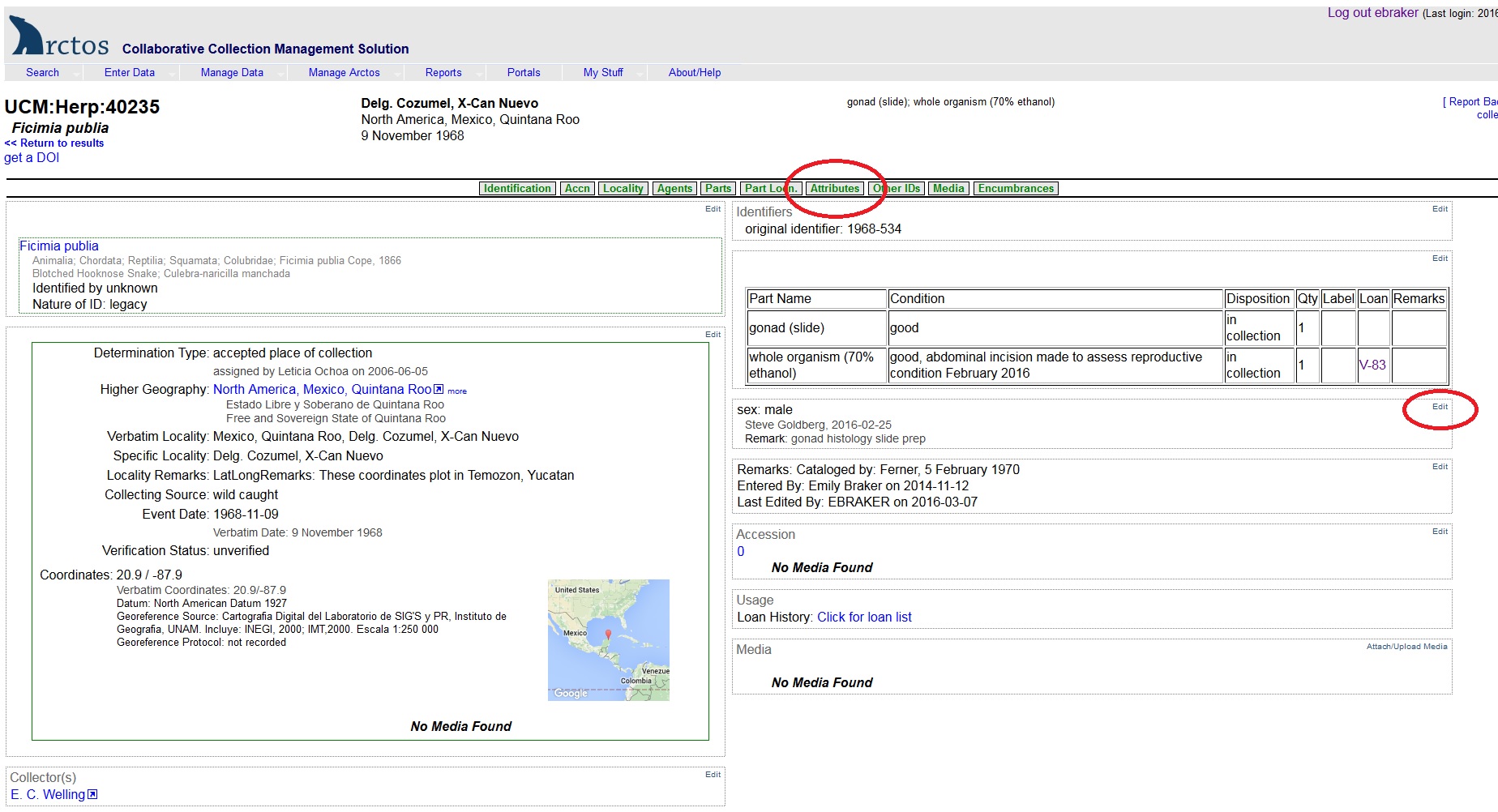
Add Attributes
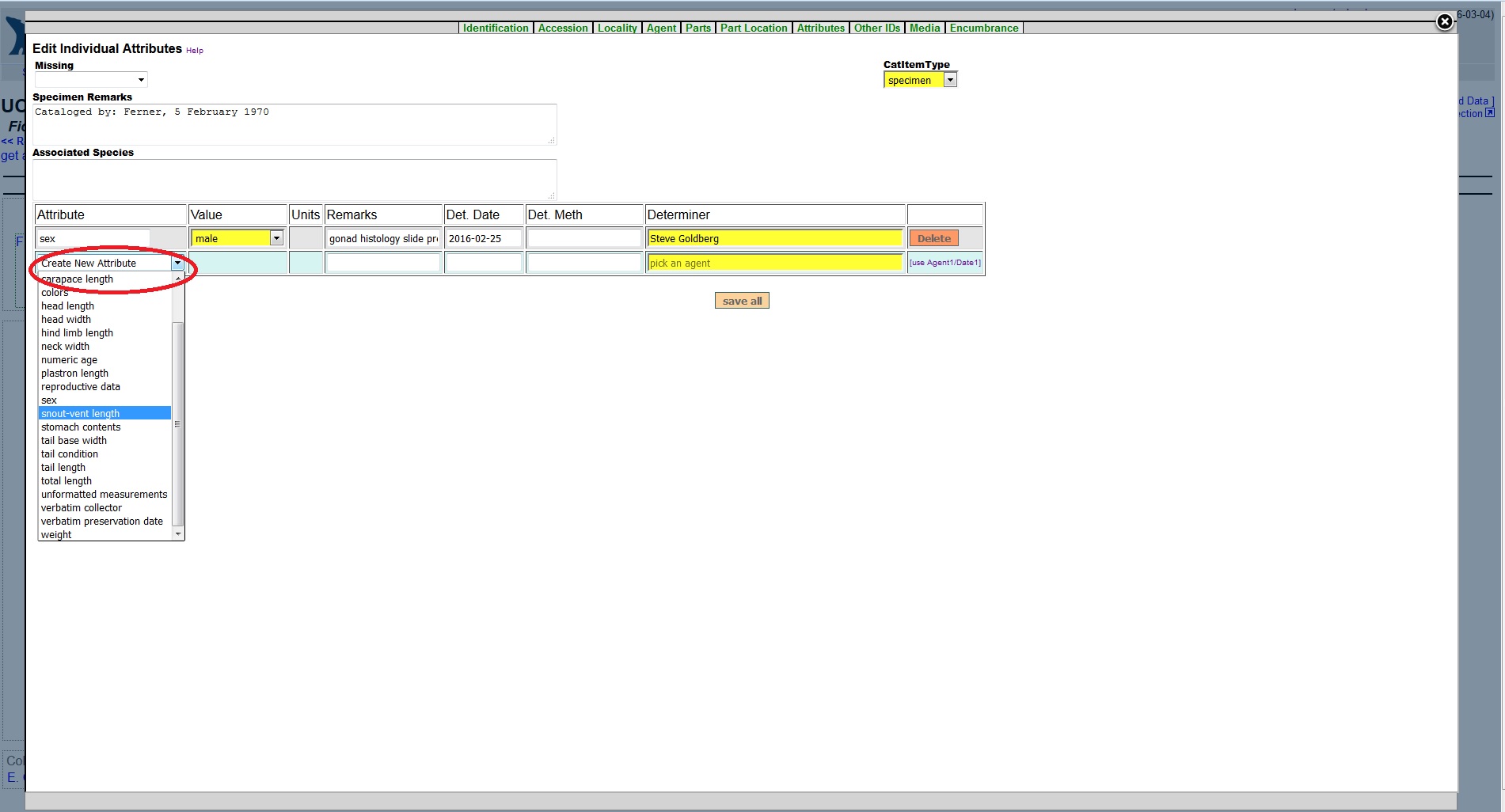
- Select the desired “Attribute” from the “Create New Attribute” drop-down menu (note: menu values are unique to collection type). Additional fields will appear in the attribute table depending on the attribute type selected (e.g., Value, Units).
- Fill in required data (yellow-highlighted fields) and any additional pertinent information in the fields provided.
- Click the “Save All” button below the table to create the attribute. Upon saving, a new blank row will appear so that additional attributes can be added. TIP: Use the “use Agent1/Date1” hypertext to carry over agent name and determination date when creating new attributes.
- Continue adding/ creating new attributes as desired by populating the appropriate fields and saving.
Edit Attributes
- Make desired edits to attribute information previously entered for the record in the desired fields and click on the “Save All” button to commit changes.
- Click on the “Delete” button to remove any attributes